
Short guides for the tasks that come up day to day – getting a document in, filing it, finding it again.
These guides describe what the app does today.
Getting a document in
Depending on what is in front of you:
- From paper – on iPhone and iPad, via the scan icon in the case list. It becomes a searchable PDF and a new case.
- A file – drag it onto the case list. Without a mouse, use the import icon in the toolbar; in iPhone portrait it sits under the
+asNew case from file. Several files at once become one case holding all of them. - A photo – on iPhone and iPad straight from the photo library, on the Mac dragged over from Apple Photos. Several at once; each one becomes its own document.
- From the clipboard – paste an image, a PDF or text.
Arciva asks for the name right away – for the case and for the document. The fields are empty and show the suggestion in grey: start typing, or keep the suggestion with Skip.
While you do that, Arciva reads the text in the document and offers up to three suggestions – the sender or the company, for instance. Tapping one replaces the name; the + beside it appends it. That is how you combine a company name and a document type.


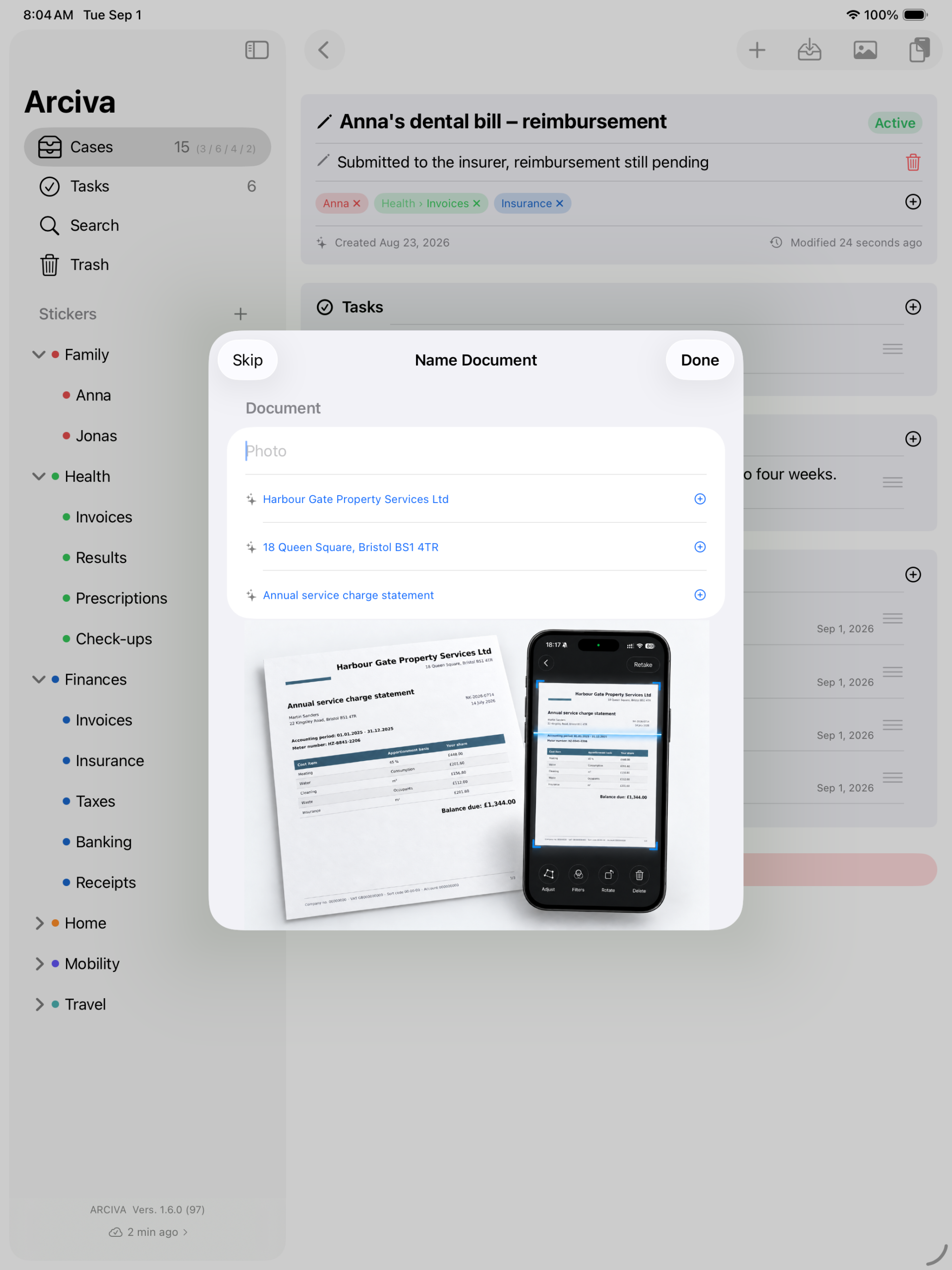
⚠️ Scanning is on iPhone and iPad only. And files are copied on import – the original stays where it was.
Scanning itself belongs to iOS, not to Arciva. Hold the camera so the whole sheet is in frame, and not too close, or the lens will not focus. It releases by itself once the image is steady. iOS then shows the scan for checking: adjust the corners, pick a filter, rotate, or take it again. Apple describes it step by step: Scan documents.
Ended up in the wrong case? On the Mac you simply drag it across: grab the handle and drop it on another case in the list. A case in the second window works too, the one you open with ⌘N.
Tasks and deadlines
A task belongs to a case – and lives in Apple Reminders. You add it with the + in the case’s task section: a title, and a due date if you need one. Arciva files it in a list called “Arciva”, so it also shows up on iPhone, Mac, Apple Watch and in Siri, whether or not Arciva is open.
The time decides whether you get reminded. With a time, Apple Reminders notifies you at exactly that moment. Without one, the task counts as “some time that day” and stays quiet. Change the date or time later in Arciva and the notification moves with it.
Whatever you set in Apple Reminders yourself stays. Location, repeat, priority, flag, early reminder – those are yours, and Arciva does not touch them.
Which case a task belongs to is written into the reminder itself. Arciva puts a line with the case title into its note – visible wherever you see your reminders. Inside Arciva it is hidden; the case is right there anyway.
All open tasks at once sit under Tasks in the sidebar – across your devices, with anything overdue in its own section at the top. You tick them off there just as in the case, using the circle on the left.
⚠️ Deleting asks first, and for good reason. The task disappears from Apple Reminders as well – with its title, date and note. They have no trash: this cannot be undone.
Writing notes
What you type is what you see – bold is bold, a list is a list. Above the field sits a bar for emphasis, headings, lists and quotes; on the Mac, ⌘B and ⌘I work without it.
You do not have to retype a table. Select a range in Excel, Numbers or Google Sheets, copy it, and put it into the note with Insert Table – it becomes a real table. In the editor it first appears as text with vertical bars; it becomes a table as soon as you read the note.
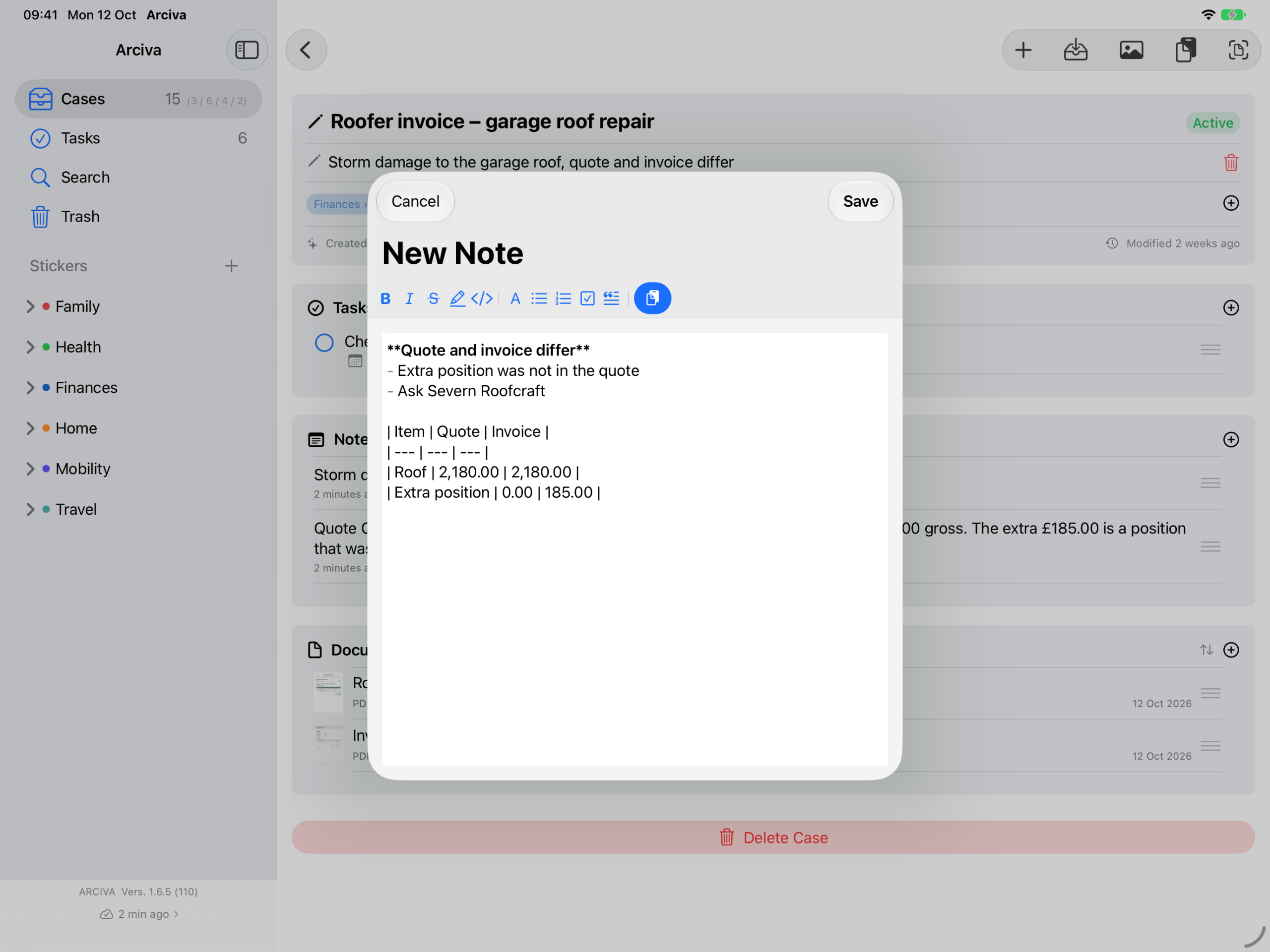
Phone numbers in a note can be called straight away, just as web and email addresses are clickable. In the short preview in the list they stay plain text.
Stickers instead of folders
A case carries as many stickers as you like, and each one is a way back to it. Anna’s dental bill belongs with Anna – but just as much with Invoices and with Insurance. You do not have to choose.
Stickers can be organised two levels deep: one can sit below another (“Finances → Invoices”). Filter by the upper one and the ones below come along.
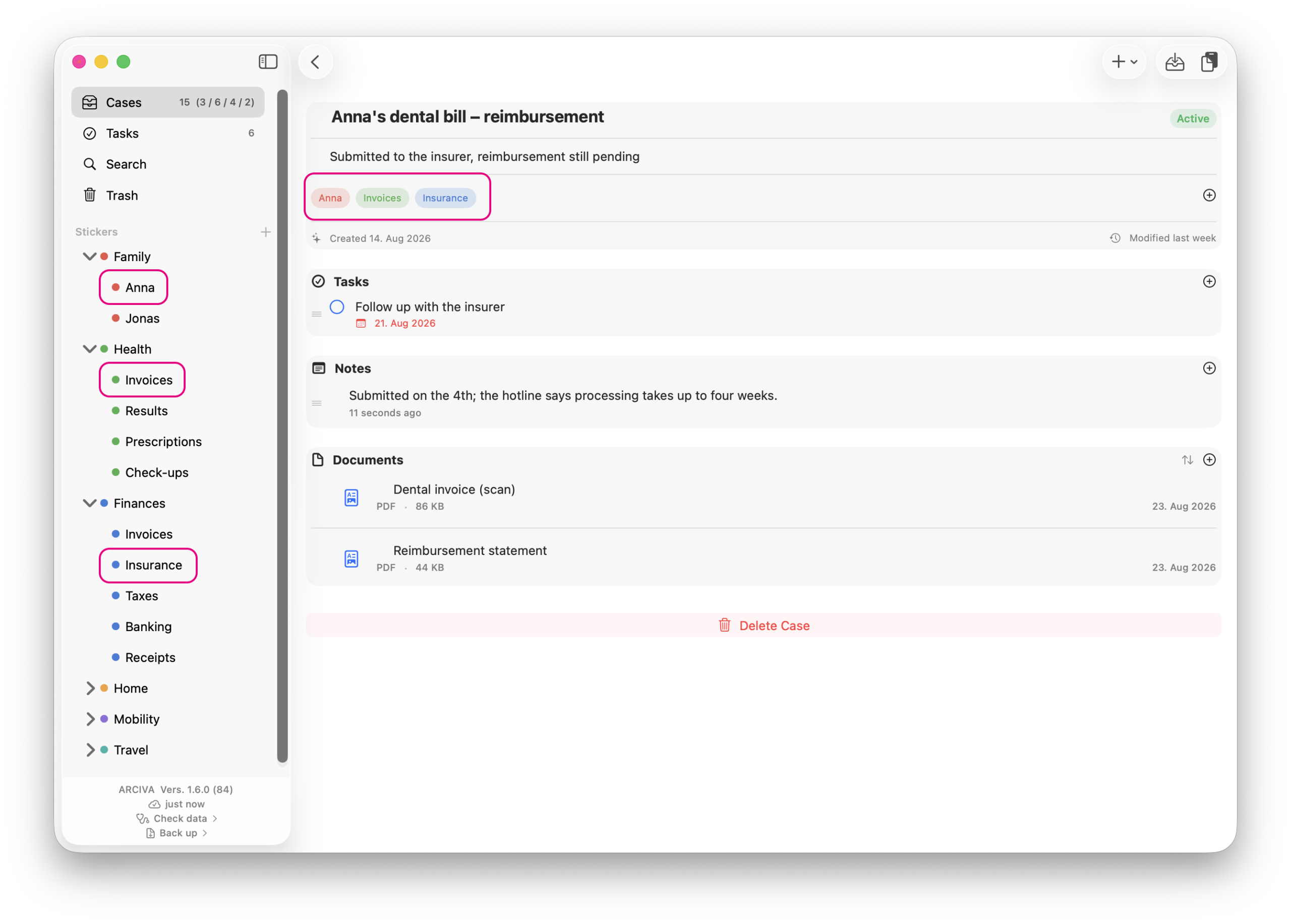
The colour comes from the group. When you create a sticker below another, its group’s colour is already suggested – you do not have to take it.
The same name can exist under two groups: Invoices under Health and Invoices under Finances. You do not have to call them “health invoices” and “finance invoices” – if a name occurs twice, Arciva puts its group in front of it.
- Assigning – in the detail view, via the
+in the sticker section. On Mac and iPad you can also drag a sticker from the sidebar onto a case. - Arranging – on the Mac, drag one onto another in the sidebar; on iPhone and iPad use a long press:
Place Below…orMove to Top Level. - Removing – via the
×on the chip in the case.
⚠️ Stickers do not come in two kinds. “Above” and “below” describe a position, not a type – any sticker can be moved at any time.
Where a case stands
Every case carries a status, and you change it straight in the list – a click or tap on the coloured badge on the right. The context menu works too: right-click on the Mac, long press on iPhone and iPad, then Change Status.
New– created, not yet startedActive– in progressDone– finishedArchived– filed away, no longer active
The order is the path a case takes: from New through Active to Done and finally Archived. You do not have to follow it – but it is why the list shows you at a glance what is still in progress and what is finished.
Finding things again – even on paper
Search goes through everything at once: titles and descriptions, notes, sticker names, tasks, document names – and the text inside the documents. Including scanned PDFs with no text layer, photos and screenshots.
Next to the sticker button there is Status. It narrows the search to New, Active, Done or Archived – with or without any search text. All statuses in the menu resets it.
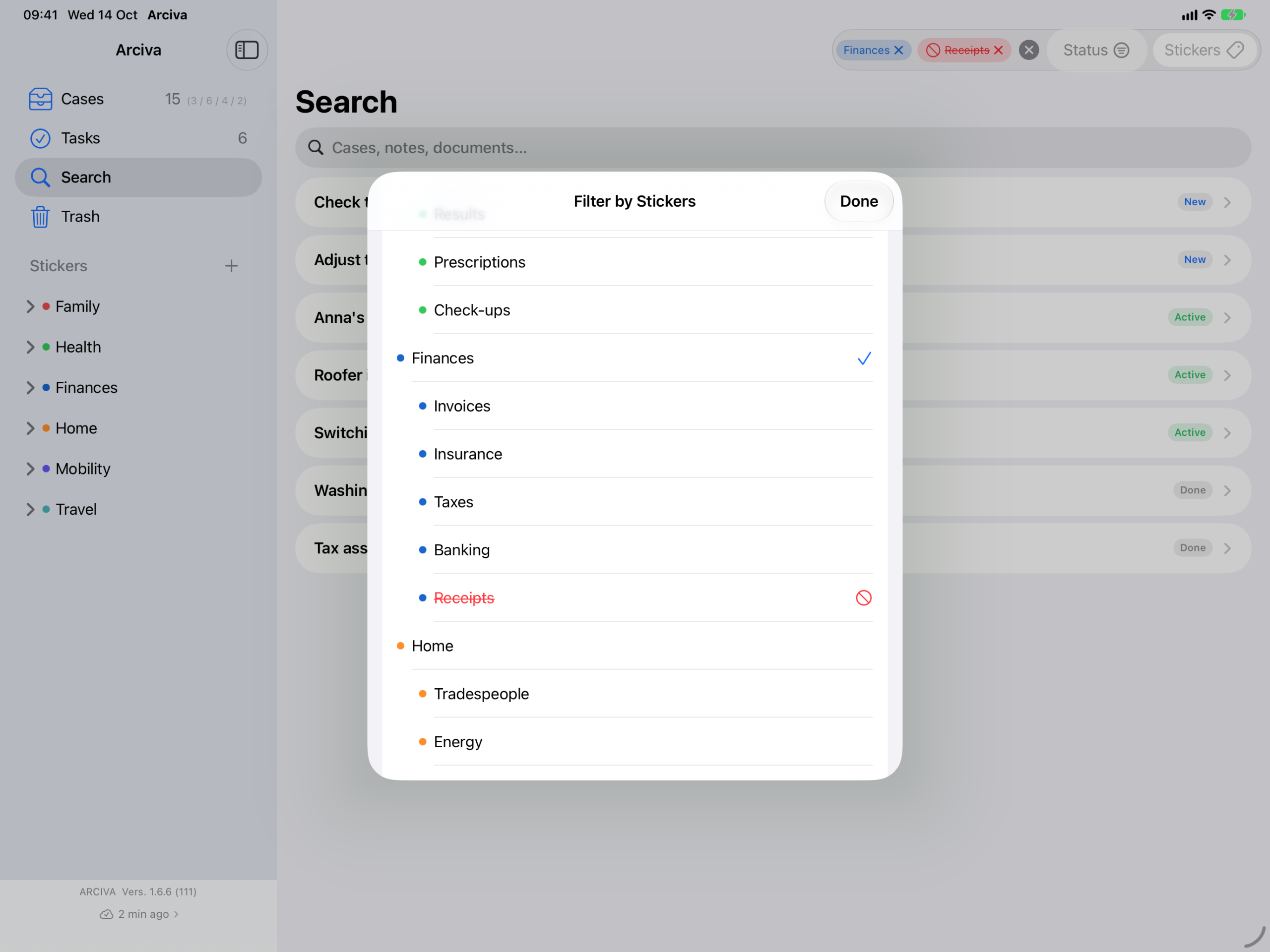
The sticker button knows three states per sticker: must be there, must not be there, doesn’t matter. That way you find everything under “Finances” without the receipts below it – an excluded sticker takes the ones below it out of the search.
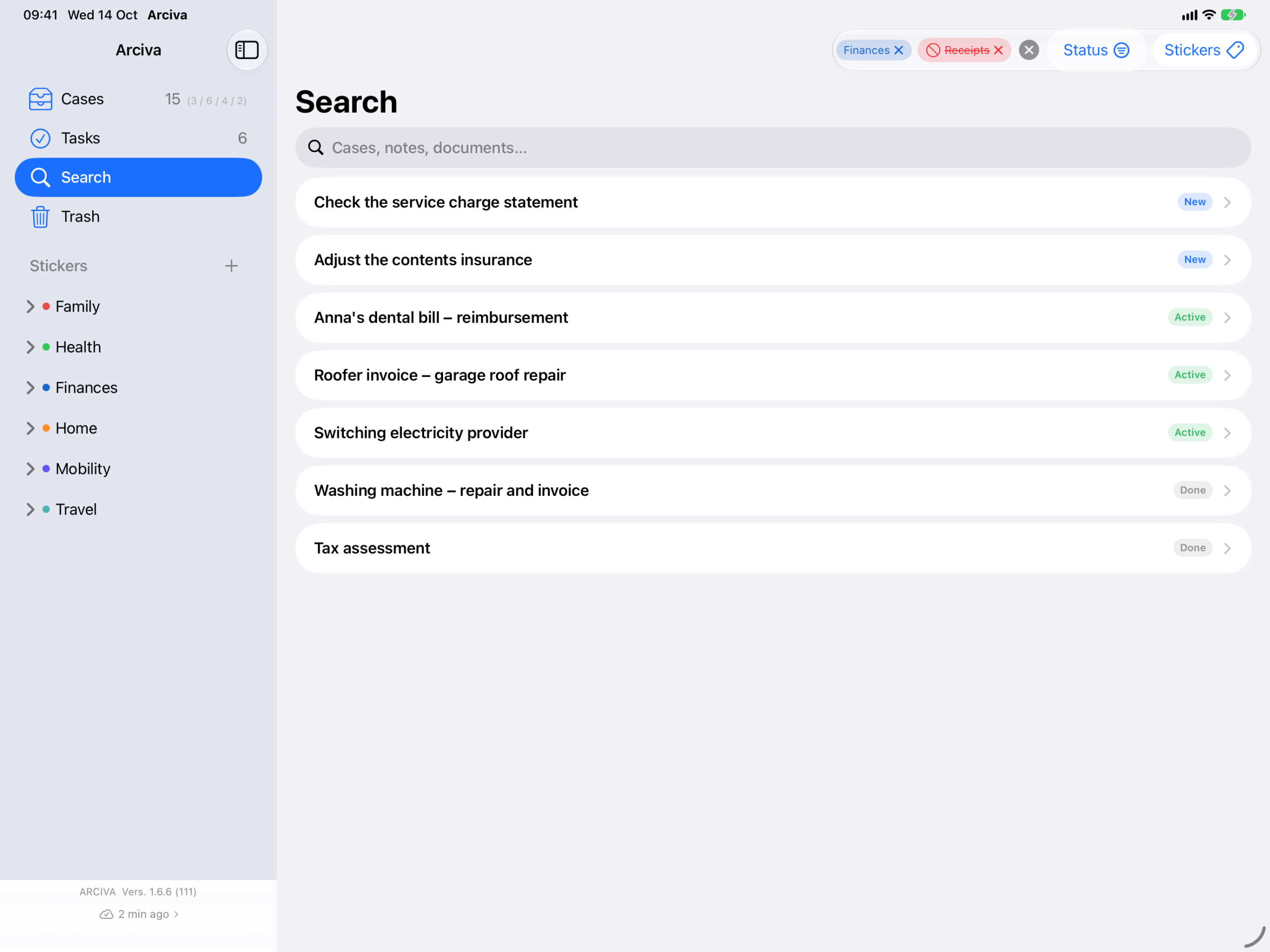
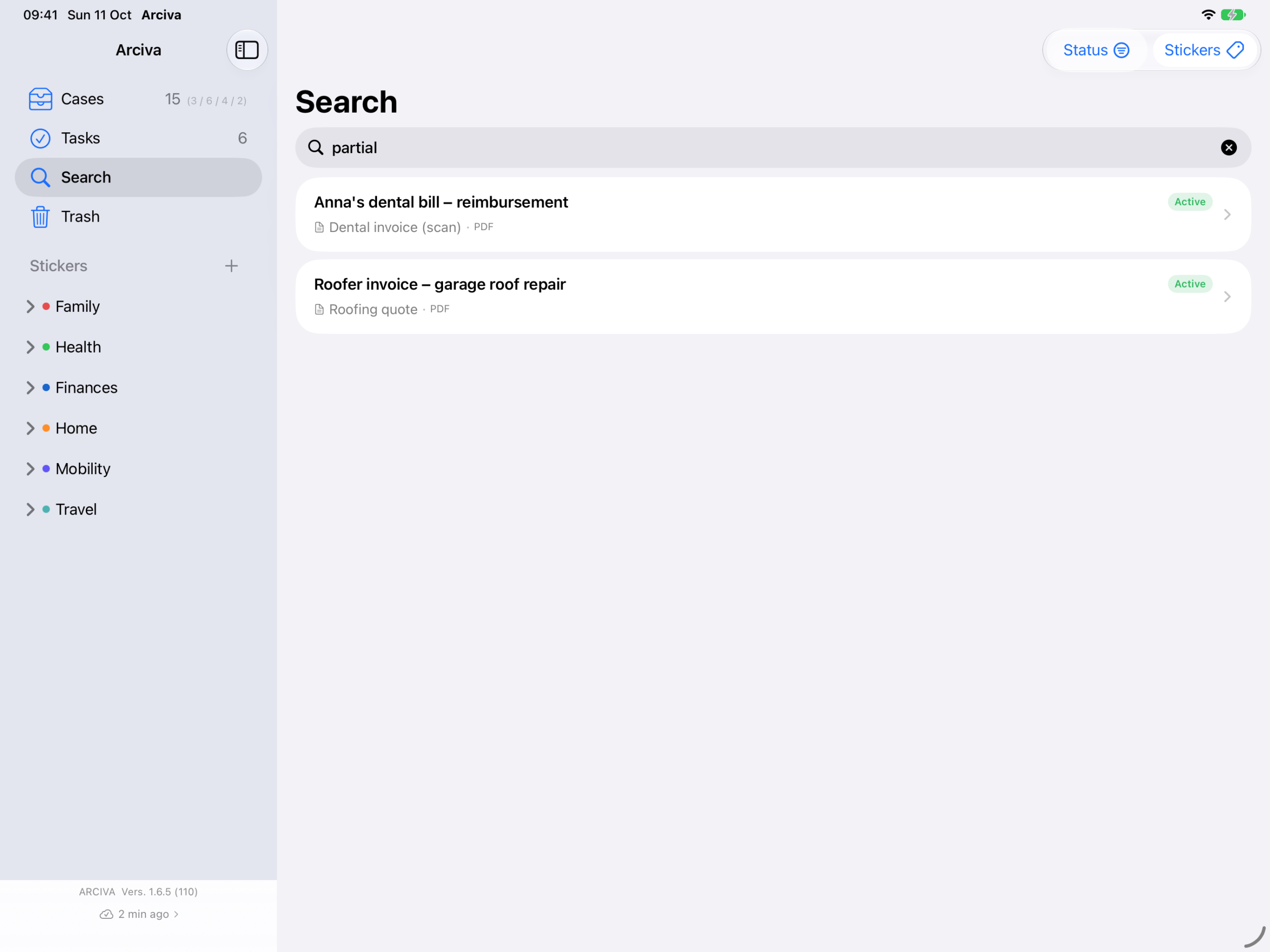
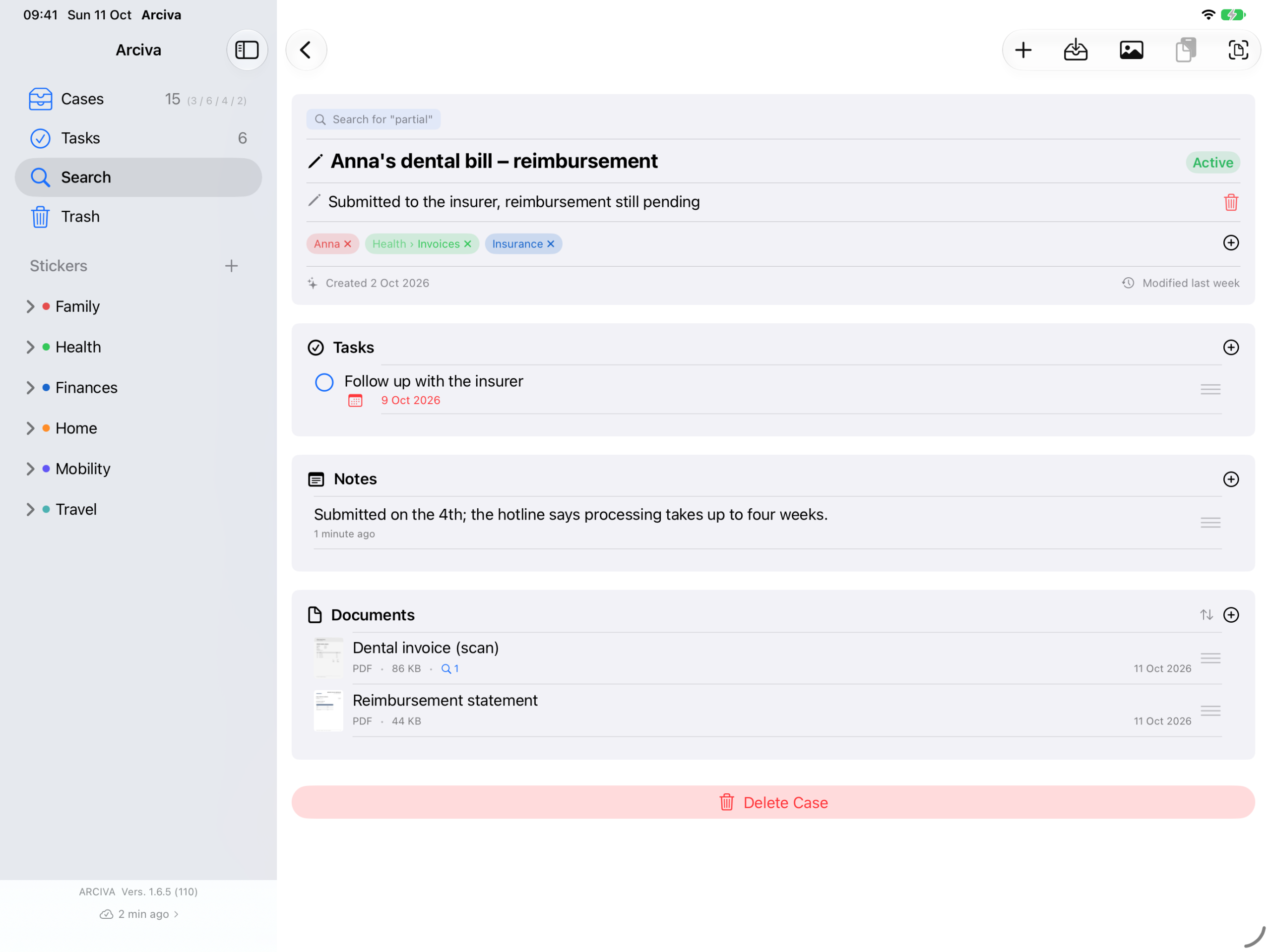
Open a result and the document list shows which document the term is in, and how often. With a case that holds many documents, you do not have to guess.
- Narrow down by stickers – via the “Stickers” button in Search, combining as many as you like. This works with no search text at all.
- Quick search – at the top of the case list, titles and descriptions only, for finding a case fast.
- Spotlight – Arciva is searchable from the system search as well.
Using a document elsewhere
Using a document elsewhere: on the Mac you drag it out of the case to wherever you would otherwise drop a file – onto the desktop, into Mail, into Photos, into Gmail in the browser. On iPhone and iPad you tap the document and use the share button. A copy is created, nothing in Arciva changes, and the file keeps the name it has in Arciva.
If the file is not on the device at that moment because iCloud freed up space, it is fetched first – you briefly see Loading…. This happens on its own.
Deleted stays for 30 days
Deleted cases sit in the Trash; deleted notes and documents stay greyed out in their section. Both remain for 30 days, and each entry shows how long it has left. One click or tap brings it back – for a case, along with the notes and documents that were deleted inside it.
⚠️ Tasks are the exception. They live in Apple Reminders, and Reminders has no trash. When a case goes to the Trash its tasks stay put and are only marked – they disappear there only when it is deleted for good.
Back up, check, restore
iCloud keeps your devices in step – but whatever disappears on one disappears everywhere. That is why Arciva writes your whole collection into a folder of your choice: one folder per case, notes as text files, documents as the original files. You can look through all of it in Finder or in “Files” without opening Arciva.
- Back up – at the bottom of the sidebar there is a line showing the state (just now, On this device only …). That line is a menu: pick
Backups, thenBack Up Now. Where it goes is up to you: the hard disk, an external drive, a network drive, or a cloud service that mounts into Finder. Arciva remembers your choice. On the Mac the same route is in theFilemenu underBackups…(⇧⌘S). - Check and restore – in the same place under
Check and restore a backup…. Arciva looks through the folder first and shows you what is in it, along with the date. You can stop here – if you only wanted to look, nothing has changed. If you want to go on,Replace everything and read inis below it.
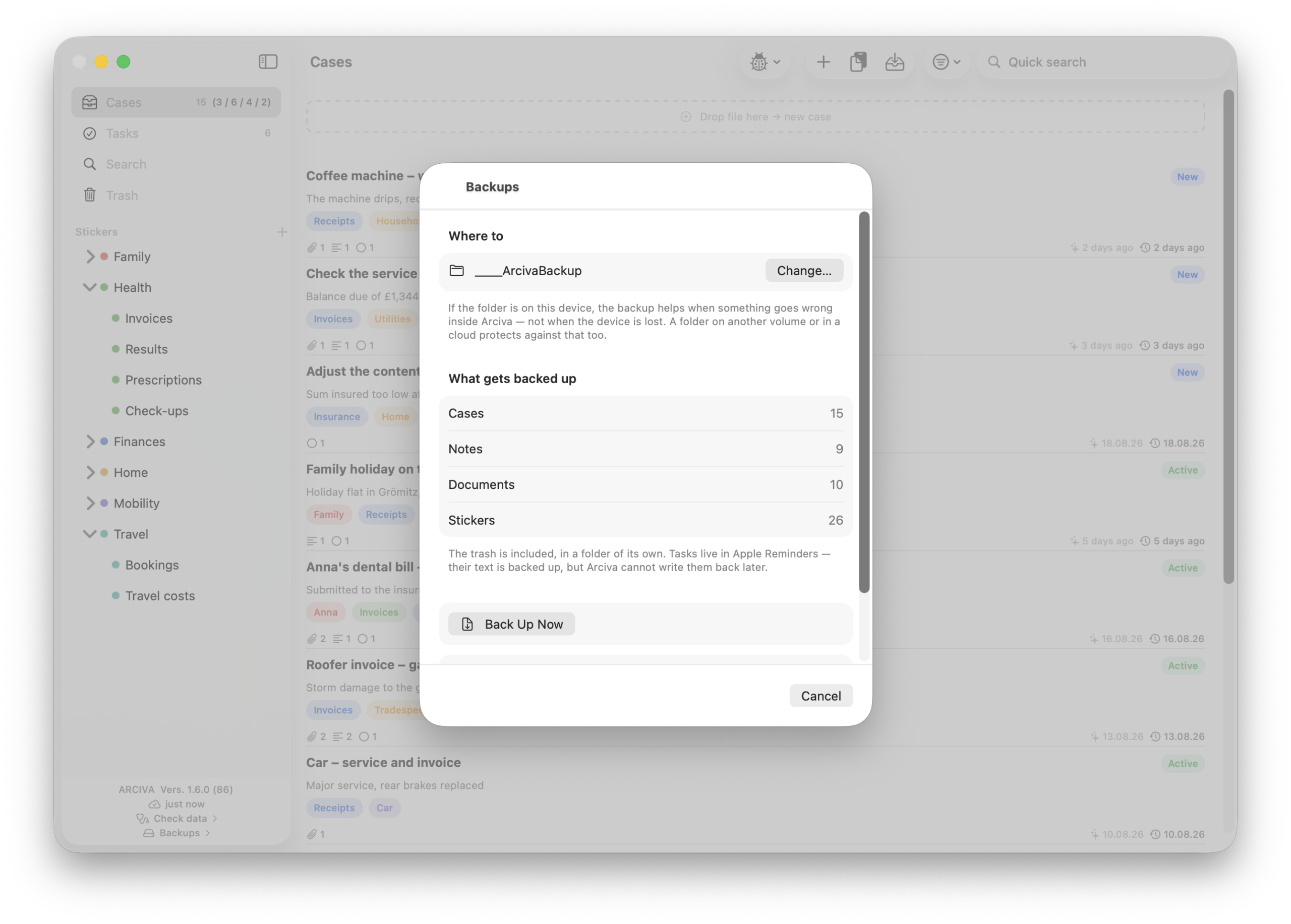
The check looks at two things. Always whether every file is still there and still has the right size – that catches the most common case, a copy that broke off halfway. On request, Check contents as well also compares a fingerprint of every file, and so finds the one that has the right size but is no longer the same. Anything missing or wrong is named. Nothing is changed.
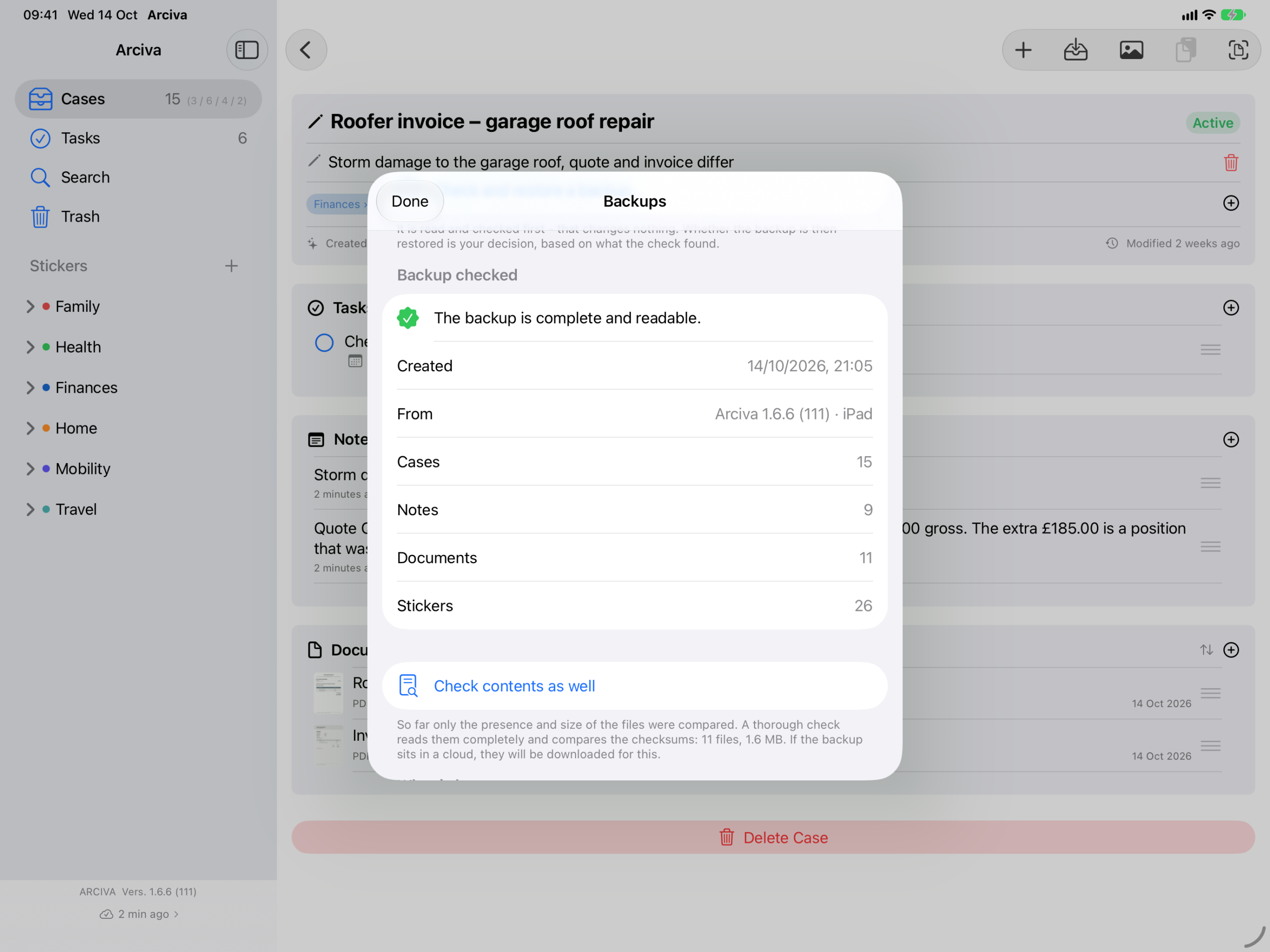
Every run creates a new, dated folder. Nothing is ever overwritten – a mirror that runs along would pass on damage just as iCloud does. Whatever is in the Trash comes along in a folder of its own. Documents that iCloud has offloaded are fetched back first, and Arciva tells you in advance how many there are. And if you stop a backup while it runs, that is written into the folder name – you see it in Finder without opening anything.
⚠️ Restoring only works into an empty Arciva. If something is already there, Arciva offers to replace the whole collection – and asks a second time. That deletion travels through iCloud to all your devices and cannot be undone. Reading in cannot be cancelled – unlike a running backup, which you can stop at any time: a half-replaced collection would be worse than an empty one. With a large collection, expect a few minutes, because every deletion travels to iCloud on its own.
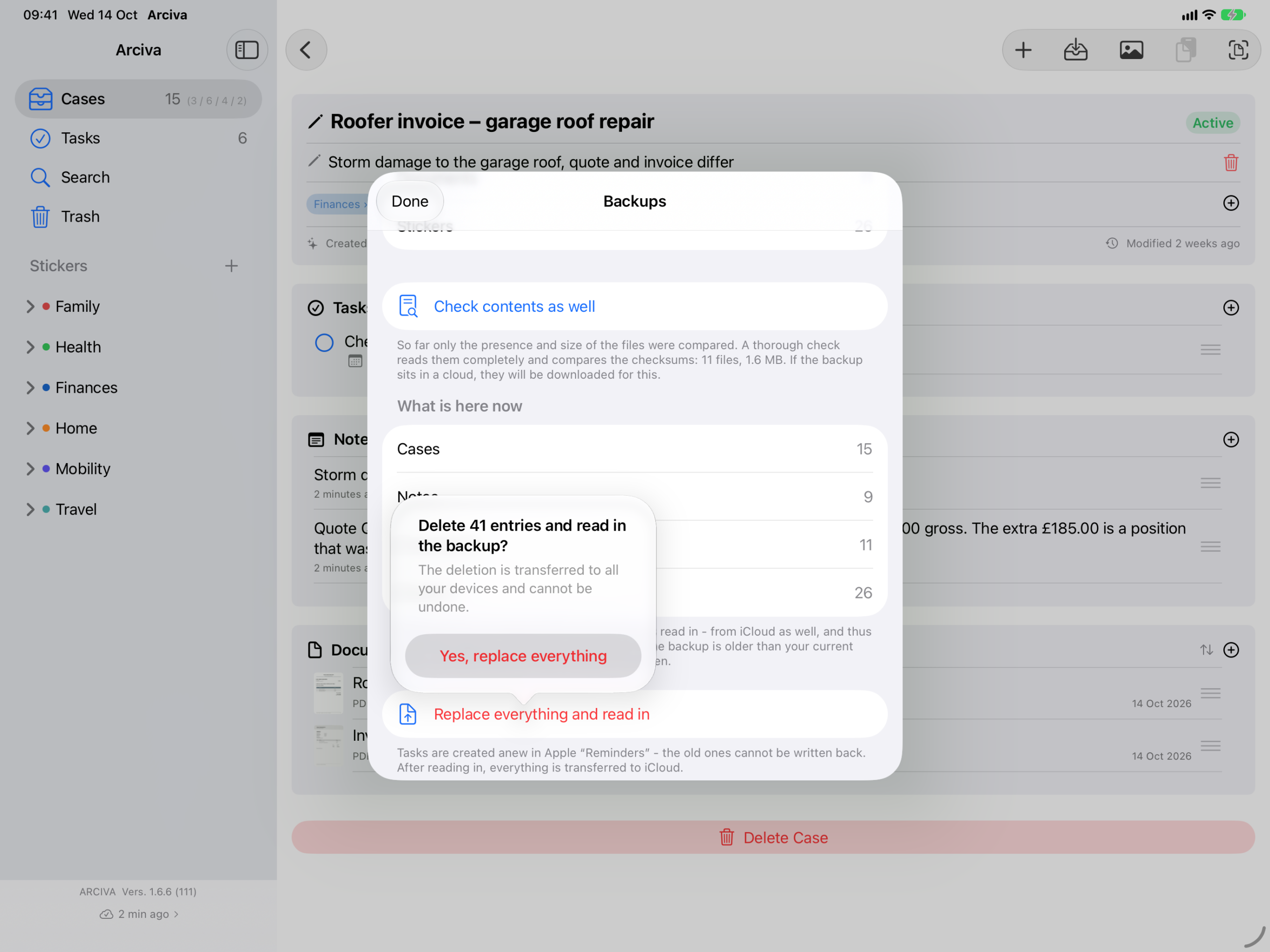
⚠️ Two things do not come back in full. Tasks live in Apple Reminders: their text, date, priority and done state come along, but as new reminders – the original ones cannot be restored. And a document whose file is missing from the backup is named for you; the case is created all the same, including the text that was recognised in it. Arciva never creates an empty file that looks like the original.
⚠️ Without a purchase, the backup has to fit the free version. More than 10 cases or 30 documents will not be read in. The refusal comes before anything is touched: your collection stays as it is, the backup stays complete, and it waits in its folder until you unlock.
⚠️ A folder on the same device is only half the job. It helps when something goes wrong inside Arciva – not when the device is lost.